Store
This guide covers the basics on creating and managing store items.
What store items can do
Store items are capable of doing several different things when they are purchased, called actions. Store items can:
- Add or remove Discord server roles from members
- Add or remove server currency from members
- Add or remove other items from a member's inventory
- Send custom messages when bought or used
A single item can have up to two actions. With Premium, this is increased to five actions per item.
Items can also be configured so that members must meet certain requirements before they can purchase or use an item. More information on Actions and Requirements can be found later on this page.
How members can interact with store items
Members can, using UnbelievaBoat currency (if enabled):
- Buy items
- Use items
- Sell items to other users
Creating an item
Items can be created using text commands, slash commands, or the dashboard. Only basic information about the item can be set using commands; for full setup of an item the Dashboard must be used. Regardless of the method you choose, members can purchase and use items using either command type, and the items can be modified using the Dashboard later.
Text commands: create-item <name>
Slash commands: /item-setup create
Dashboard: Store page > Create Item
You can create up to 25 items. This limit is removed if you subscribe to Premium.
Configuring an item
Items can be customized in many ways. Simply select your item from the Dashboard > Store. More information on item Actions and Requirements can be found later on this page.
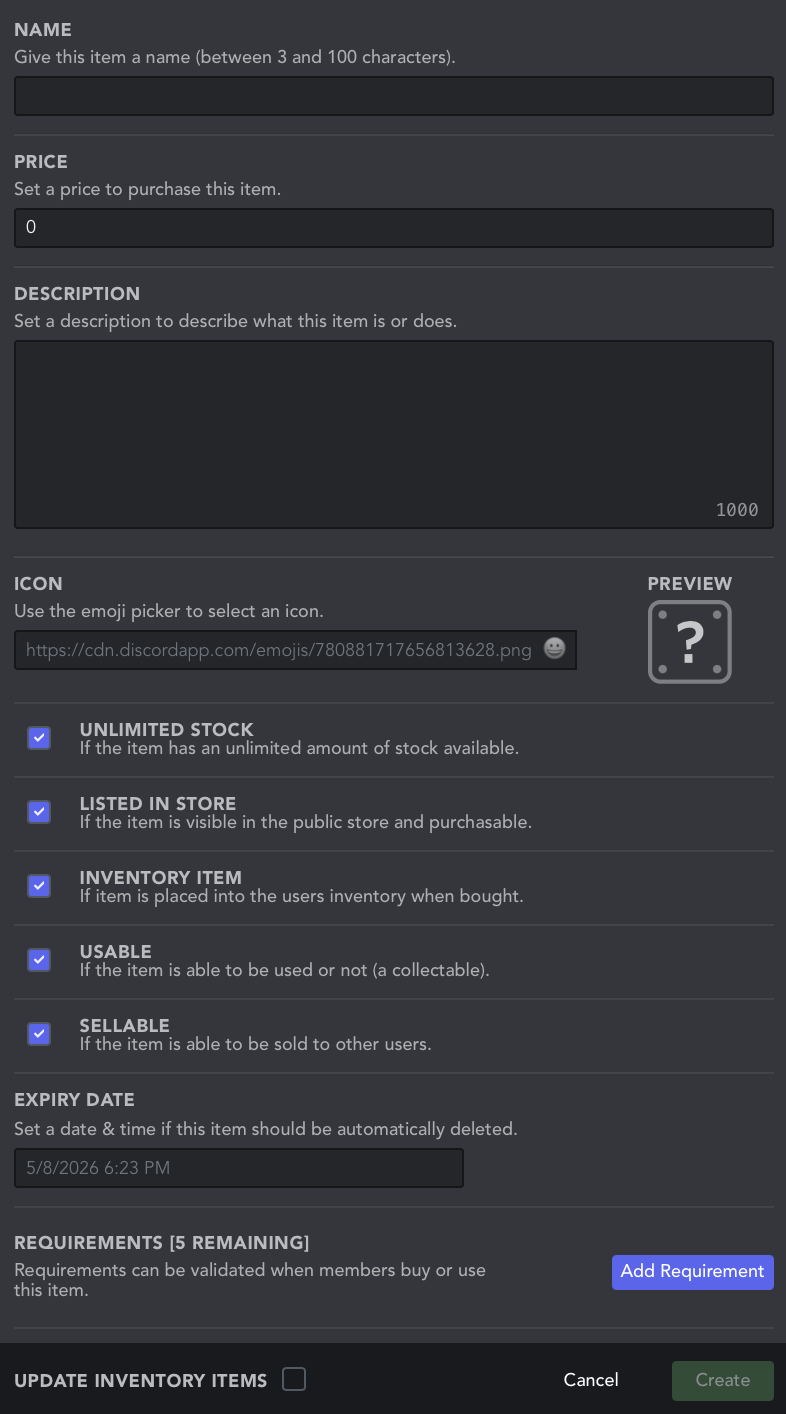
Item icon
Item icons must be of default emoji, or of custom emoji added to the same server the bot is on. Select the icon to the right of the text field to pick an emoji.
Update inventory items toggle
Select this option if you want to apply the changes you make to items already purchased by members and in their inventory. Leaving this unchecked means only items bought after the changes were made will be affected.
Item actions
The following actions can be added to items:
- Send message
Send a message to the same channel where the item is bought or used. - Edit roles
Add or remove a role from the member. Multiple roles can be added or removed at once.
For this action to function, the role(s) must be under UnbelievaBoat's highest role in the list in Server Settings > Roles. You must also be able to manage this role to add it to an action.
- Edit balance
Add or remove money from the member's cash balance. - Edit items
Add or remove other items from the member's inventory. Multiple items can be added or removed at once.
Each item action can be configured to occur only when the item is bought, only when it is used, or both.
A single item can have up to two actions. With Premium, this is increased to five actions per item.
Timed actions
An expiry timer can be set for role and item actions. Once time is up, the action is reversed (for example, if the action is to give roles, after time is up the roles are removed). This can be done using the timer icon to the right of the action settings. This feature is active when the icon is green.
Item requirements
Item requirements are requirements that a member must meet before purchasing or using an item. The following requirements can be set for items:
- Role
The member must either have all of the roles listed, at least one of the roles listed, or none of the roles listed. - Total balance
The member must have a net worth equal to or greater than this value. - Item
The member must have in their inventory all of the items listed, at least one of the items listed, or none of the items listed. Specific item quantities can be set next to each item added.
Deleting all store items
To delete all items from your store, visit the Dashboard > Store and select the Options menu in the top right corner. Select the "Delete All Items" option. This cannot be undone!
Deleting everyone's inventory
To delete all items from everyone's inventory, visit the Dashboard > Store and select the Options menu in the top right corner. Select the "Delete All Inventories" option. This cannot be undone!